How to Record Your Phone Screen: A Universal Guide for Any Device
admin
2 weeks ago
Ever wished you could show someone exactly what’s happening on your phone, step-by-step, without needing to explain it verbally? Whether you’re troubleshooting a tech glitch for a friend, creating a quick tutorial, or just saving a hilarious moment from a game, knowing how to record phone screen is an invaluable skill. Fortunately, learning to record phone screen on any device is now simpler than ever, thanks to readily available tools. (See also: Choosing a Smartphone in 2025: The Ultimate Buying Guide)
📋 Table of Contents
As Wired reported on September 25, 2026, the built-in tools on your smartphone—alongside some surprisingly powerful and often inexpensive apps—have revolutionized how we share our digital experiences. Gone are the days of fumbling with cameras pointed at screens; modern mobile operating systems offer robust solutions to seamlessly capture your phone’s display. This guide from AlkaTech will walk you through everything you need to know about capturing your mobile moments, ensuring you can share, teach, and troubleshoot with crystal clarity.
How to Record Your Phone Screen on iOS (iPhone)
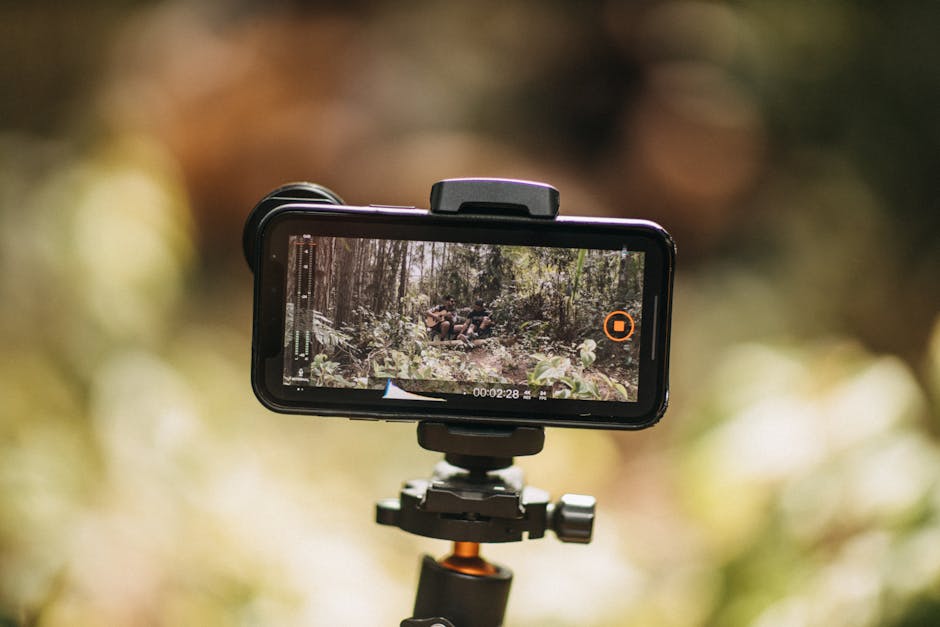
Apple has integrated a robust screen recording feature directly into iOS, making the process incredibly straightforward for iPhone users. If you’ve ever wondered how to screen record on your iPhone, you’re in for a treat. The native iOS recorder offers excellent quality and is incredibly easy to access.
Setting Up Screen Recording on iOS:
- Add to Control Center: First, you need to ensure the Screen Recording control is available. Go to Settings > Control Center. Scroll down and tap the green plus (+) icon next to ‘Screen Recording’ to add it to your Included Controls.
- Access Control Center:
- On iPhones with Face ID (iPhone X and later), swipe down from the top-right corner of the screen.
- On iPhones with a Home button, swipe up from the bottom edge of the screen.
- Start Recording: Tap the circular ‘Record’ button. You’ll see a three-second countdown before recording begins. The status bar at the top of your screen will turn red (or show a red pill-shaped indicator on newer iPhones) to indicate that recording is active.
- Include Audio (Optional): Before you tap the record button, you can long-press (or 3D Touch) the ‘Record’ button to bring up additional options. Here, you can toggle the microphone on or off to capture external audio (like your voice) along with the internal system sounds.
- Stop Recording: Tap the red status bar at the top of your screen and select ‘Stop’ from the prompt. Alternatively, open Control Center again and tap the ‘Record’ button.
- Find Your Recording: Your screen recording will automatically be saved to your Photos app, where you can view, edit, and share it like any other video.
Recording Your Phone Screen on Android Devices
Android’s open-source nature means that while the core functionality to record phone screen exists across the board, the exact steps can vary slightly depending on your phone’s manufacturer (Samsung, Google Pixel, OnePlus, etc.) and Android version. However, the general principle remains consistent, with most modern Android devices offering a built-in solution. (See also: iOS 19 vs Android 16: Top Differences for Smartphone Users)
General Steps to Screen Record on Android:
- Access Quick Settings: Swipe down twice from the top of your screen to fully expand the Quick Settings panel.
- Locate Screen Recorder: Look for a ‘Screen Recorder’ or ‘Screen Record’ icon. You might need to swipe left or right on the Quick Settings panel to find it, or tap the ‘Edit’ (pencil) icon to add it if it’s not visible.
- Start Recording: Tap the ‘Screen Recorder’ icon. You’ll usually get a prompt asking for permission to record and options for audio source (device audio, microphone, or both) and sometimes resolution. Confirm your choices and tap ‘Start’. A countdown typically precedes the recording.
- Indicators: A small floating toolbar, notification, or a persistent icon in the status bar will indicate that recording is in progress.
- Stop Recording: To stop, either tap the floating toolbar (if present), pull down the notification shade and tap ‘Stop’ on the screen recorder notification, or tap the screen recorder icon in the Quick Settings again.
- Access Your Recording: Your video will be saved to your phone’s Gallery or Photos app, typically in a ‘Screen recordings’ album.
Note for Older Android Devices: If your Android phone doesn’t have a built-in screen recorder, don’t worry! There are excellent third-party apps available, which we’ll discuss next.
When Built-In Isn’t Enough: Exploring a Screen Recording App
While the native tools are fantastic for most casual users, there are times when you might need more advanced features, greater control, or specific editing capabilities. This is where a dedicated screen recording app comes into play. These apps often provide a richer feature set, perfect for users who frequently need to capture phone screen content for more professional or detailed purposes.
Popular Third-Party Screen Recording Apps:
- AZ Screen Recorder: Widely popular for Android, AZ Screen Recorder offers a clean interface, no time limits, no watermarks, and features like internal audio recording, facecam overlay, drawing on the screen, and basic video editing tools. It’s an excellent choice if your phone’s native recorder is too basic or non-existent.
- Mobizen Screen Recorder: Another robust option for Android, Mobizen allows for full HD recording, clear audio, and even offers a “Clean Recording Mode” to hide the recording widget. It includes editing features and the ability to add a custom watermark.
- DU Recorder (Caution): While once very popular, some older versions of DU Recorder have faced privacy concerns. If considering this app, always ensure you download the latest version from a reputable source like the Google Play Store and check its permissions carefully. Newer, cleaner alternatives are often preferred.
When choosing a third-party screen recording app, always read reviews, check the app’s permissions, and ensure it comes from a trusted developer to safeguard your privacy and device security.
Tips for a Flawless Screen Recording Experience
To ensure your recorded content is professional, clear, and impactful, consider these pro tips when you capture phone screen:
- Clear Clutter: Before you start, close unnecessary apps, clear your notifications, and tidy up your home screen if it’s going to be visible. A clean slate makes for a more professional
❓ Frequently Asked Questions
How do I record my screen on an iPhone?
iPhones have a built-in screen recorder accessible from the Control Center. You can enable it via Settings > Control Center > Customize Controls and then add ‘Screen Recording’.
Can I record internal audio while screen recording on Android?
Many modern Android phones and third-party apps allow recording internal audio directly. For older models, you might need to rely on microphone audio or specific app settings.
Are there good free apps for screen recording on phones?
Yes, many free apps like AZ Screen Recorder for Android or the built-in recorders on iOS and newer Android versions offer robust features without cost.
What should I do if my phone doesn’t have a built-in screen recorder?
If your phone lacks a native feature, you can download a third-party screen recording app from your device’s app store, such as Google Play Store or Apple App Store.
Leave a Reply